capture the network package used by tcpdump

In linux you can capture the network package used by tcpdump

  1. sudo install tcpdmp,if you use debian .you can install it with
1
apt install tcpdump
  1. capture the newtork package used next command ,the network_interface_name can find by ip command.
1
sudo tcpdump -i netwrok_interface_name -w capture_name.pcap
  1. download the capture_name.pcap and opened it with wireshark.

login ubuntu VPS by key-based

one day ,when i login to my ubuntu vps. i found my vps server login two session one time by follow command.

1
ss -tnp | grep sshd

then ,i realize that my server has been hacked.

so , i decide to do somthing to protect my server.

the first thing is to configuremy server to use key-based ssh login instead of login with a username and password method.

first, i generate the ssh key using the follow command.

1
ssh-keygen -t ed25519 -C "joey@itech.sh"

if you use the default settings to answer the previous question. two files will be generated in the following directory.

~/.ssh/id_ed25519 ← (private key)
~/.ssh/id_ed25519.pub ← (public key)

and then ,what i need to do is upload he publick key to my server.so i use the following command to accomplish this.

1
ssh-copy-id root@memos.ifish.blog

in the above command , root@memos.ifish.blog is the vps server domain and username.after the command complete ,the public key will be uploaded in the vps’s root directory

once you finish the ablove steps. i can login my vps server now.

but if i want to use putty to login to my server. i need to convert the private key to a format use puttygen that putty can read .

this process is simple.so i won’t want explain here.

when do this step complete.you need to deny user user username and password to login the VPS.

so ,you need to edit the /etc/ssh/sshd_config file follow.

1
2
3
4
PasswordAuthentication no`
`ChallengeResponseAuthentication no`
`UsePAM no`
`PubkeyAuthentication yes

when edited the file. please restart the ssh service use the follow command

1
sudo systemctl restart sshd

install xfce4 and xrdp in the debian vps

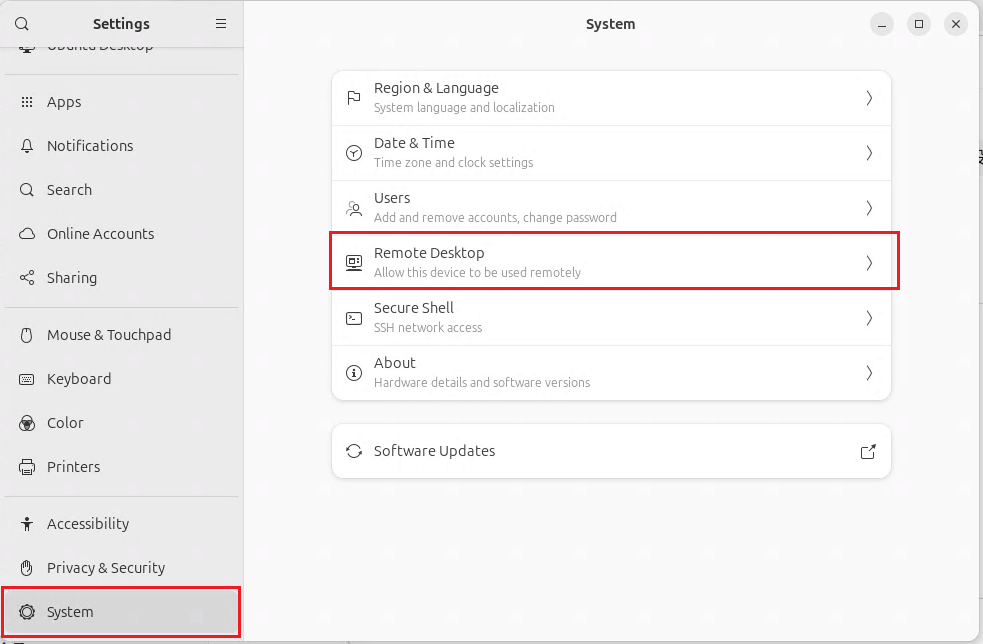
Some times we need desktop environment instead of ssh.

So i record how to install xfcd and xrdp here. this document demo in the Debian 12.

  1. update system
1
2
apt update
apt upgrade

2.install xfce desktop environment

1
apt install xfce4 xfce4-goodies

3.install xrdp service

1
apt install xrdp

4.check xrdp if installed successful

1
systemctl status xrdp

5.add xrdp user into ssl-cert group

1
adduser xrdp ssl-cert

6.restart xrdp

1
systemctl restart xrdp

7.config firewall allow 3389

1
ufw allow 3389
  1. connect vps use windows remote desktop connection
1
mstc

9.please wait a moment when the mouse display , because sometime it is slowly.

  1. install firefox
1
2
3
4
5
apt update
apt upgrade
apt install snapd
snap install core
snap install firefox
  1. restart vps

12.open firefox from the system menu.

Install openTap

After Opentap update,Opentap editor community version is offline. Instead of it is Opentap editor.when install the opentap editor,must register to keysight website and active community version. and when you use the software ,run any test plan,the software will automatic to connect keysight website to verify or collection your information.It is unfriendly when you have not internet connection when you used in the factory line.

After a period of exploration,i find the older community version. so i record it follow.

1
2
3
4
5
6
7
8
1. install dotnet9.0 runtime
2. install OpenTap9.31.1
3. set the PC dns to 127.0.0.1 (Import,other wise, you will wait long long time )
4. unzip PackageCache.zip and copy the unzip files to "C:\Users\<Your PC longin name>\AppData\Local\OpenTap\PackageCache".if the "OpenTap\PackageCache" directory is not exist.you can enter the directory that opentap software installed directory,and run "tap package list" command. the directory will create automatic.
5. run the command "tap package install "Editor CE"
6. enjoy it.


the file in step 4 , please download it from

https://wwbeh.lanzouu.com/iQSry3hl02va

c# access dify api

Dify is a AI tool.It can build some application ealily.

when you create a application in dify, you can access it use dify api.

the next is access dify api C# source code.

1
2
3
4
5
6
7
8
9
10
11
12
13
14
15
16
17
18
19
20
21
22
23
24
25
26
27
28
29
30
31
32
33
34
35
36
37
38
39
40
41
42
43
44
45
using System.Net.Http;
using System.Net.Http.Headers;
using System.Text;
using System.Text.Json;
using System.Threading.Tasks;

namespace TranslateTool.Repository;

public class TranslateApi
{
private string _url = "< The url that App build in >";

public async Task<string?> Translate(string orignText)
{
using (var client=new HttpClient())
{
client.DefaultRequestHeaders.Authorization = new AuthenticationHeaderValue("Bearer", "< App Api key>");
var requestBody = new
{
inputs = new { },
query = orignText,
response_mode = "blocking",
conversation_id = "",
user = "abc-123"
};
var json = JsonSerializer.Serialize(requestBody);
var content = new StringContent(json, Encoding.UTF8, "application/json");
var response = await client.PostAsync(_url, content);
response.EnsureSuccessStatusCode();
var responseJson = await response.Content.ReadAsStringAsync();
using (var doc=JsonDocument.Parse(responseJson))
{
if (doc.RootElement.TryGetProperty("answer", out var answer))
{
return answer.GetString();
}
else
{
return null;
}
}
}

}
}

OpenClaw-QQBot 插件安装失败(npm install failed)完整解决方案

今天安装openclaw对接qq机器人遇到了一个问题,直接运行

1
openclaw plugins install @tencent-connect/openclaw-qqbot@latest

这个脚本,会出现下面这个提示

1
npm install failed:

npm 安装依赖失败,尝试了很多次都会提示这个(之前运行这个脚本就没遇到这个情况,很玄学) 。

经过了一天的折腾,找到了问题所在和解决方案

问题核心原因

1. OpenClaw 内置安装机制的「过度限制」

OpenClaw 的 plugins install 命令不是简单调用 npm install,而是加了多层校验:

  • 检测插件代码中的 child_process(Shell 执行)、环境变量读取等行为,即使是插件正常功能,也会触发「安全拦截」;
  • 内置的 npm 执行环境被限制了权限 / 超时时间,一旦依赖下载稍慢或编译耗时,就会直接判定「npm install failed」;
  • 临时目录(/tmp/openclaw-plugin-*)的权限 / 生命周期管控严格,手动操作稍慢就会被自动清理。

2. 服务器基础环境不匹配

  • Node.js 版本:插件要求 node >=24,openclaw安装脚本安装的默认版本是 v22.22.1,部分依赖编译会出现问题;
  • 编译依赖缺失:插件中的音频转换、系统调用类依赖需要 gcc/g++/python,即使安装了基础编译环境,低版本系统仍可能编译失败;
  • 资源不足:服务器内存 / CPU 不足时,npm install 会因资源抢占卡住,表现为「无报错但一直卡」。

3. 网络层的隐性问题

  • npm 源的「安全审计接口」在国内镜像(如淘宝源)未实现,触发 404 警告,OpenClaw 会误判为安装失败;
  • 依赖包分片下载时,服务器网络波动导致超时,npm 无重试机制,直接终止安装;
  • 部分依赖包(如二进制预编译包)的 CDN 节点在境外,下载速度极慢甚至超时。

分步解决方案

1.升级node版本

1
2
3
4
5
6
7
8
9
10
11
12
13
14
# 全局安装 n 工具
npm install -g n

# 如果提示权限不足(Permission denied),加 sudo 执行
sudo npm install -g n

# 安装并切换到 v24 最新稳定版
sudo n 24

# 查看 Node.js 版本(输出 v24.x.x 即为成功)
node -v

# 查看 npm 版本(同步升级,无需单独操作)
npm -v

2.将npm源改成官方源

国内镜像会出现更新不同步的问题

1
npm config set registry https://registry.npmjs.org/

3.直接通过npm安装插件

绕过OpenClaw 插件安装机制的限制

1
npm install -g @tencent-connect/openclaw-qqbot@latest

等待安装好之后把 npm 安装好的包迁移到 OpenClaw 插件目录

4.定位插件安装路径

1
2
3
4
5
6
7
8
9
10
# 1. 自动定位 npm 全局安装的插件路径(兼容不同系统)
PLUGIN_PATH=$(npm root -g)/@tencent-connect/openclaw-qqbot

# 2. 验证路径是否存在(不存在则提示错误)
if [ ! -d "$PLUGIN_PATH" ]; then
echo "❌ 插件安装失败,请检查 npm install 命令是否执行成功"
exit 1
else
echo "✅ 插件安装路径:$PLUGIN_PATH"
fi

5.迁移到 OpenClaw 插件目录

1
2
3
4
5
6
7
8
9
# 1. 删除 OpenClaw 旧的未完成目录
rm -rf /root/.openclaw/extensions/openclaw-qqbot

# 2. 将 npm 安装好的插件完整复制过去
cp -r $PLUGIN_PATH /root/.openclaw/extensions/openclaw-qqbot

# 3. 赋予正确权限
chown -R $USER:$USER /root/.openclaw/extensions/openclaw-qqbot
chmod -R 755 /root/.openclaw/extensions/openclaw-qqbot

6.配置信任 & 验证插件

1
2
3
4
5
6
7
8
9
10
11
12
13
14
# 1. 配置 plugins.allow 消除安全提示
cat > /root/.openclaw/config.json << EOF
{
"plugins": {
"allow": ["@tencent-connect/openclaw-qqbot", "wecom-app"]
}
}
EOF

# 2.重启OpenClaw服务
openclaw gateway restart

# 2. 最终验证(看到插件名称即为成功)
openclaw plugins list | grep openclaw-qqbot

7.配置 QQ 机器人

1
2
3
4
5
# 1.配置绑定当前QQ机器人
openclaw channels add --channel qqbot --token "190xxxxx:iT9xxxxxx"

# 2.重启OpenClaw服务
openclaw gateway restart

总结

  1. 核心解决思路:绕过 OpenClaw 内置安装机制,手动用 npm 安装插件后迁移到指定目录;
  2. 关键前置:升级 Node.js 到 v24+、安装编译依赖、切换 npm 官方源,解决底层环境问题;
  3. 验证要点:插件迁移后需配置信任列表,重启服务并通过 openclaw plugins list 确认加载成功。

OpenClaw + OpenAI OAuth

As we know OpenClaw need much tokens.

OpenClaw is Free, but token is Paid, and the paid is also very expensive.

so i found the OpenAI OAuth method. If you have OpenAI plus subscribe. This method is best .

follow next step to use openai oauth to user openclaw.

first ,you need to install openclaw:

1
npm install -g openclaw@latest

now set openai oauth:

1
openclaw models auth login --provider openai-codex

This command will open your default browser to access your OpenAI website.please login by your account. If you login in successful, copy the url and paste it into your terminal.

For complete this step ,you need a GUI ubuntu. If your vps don’t have GUI .please reference another page in this site.

if success , you will find some information like “Auth profile: openai-codex:default (openai-codex/oauth)
Default model available: openai-codex/gpt-5.4 (use –set-default to apply)”

then type next command:

1
openclaw --profile default models set openai-codex/gpt-5.4

attention, the model name maybe different like me .please use your mode in the response information.

then

1
openclaw gateway restart

after restart openclaw, enjoey it.

open remote virtual machine by vmware remote console without open esxi web console

For a long time ,if user need open the virtual machine that created in the esxi host. user must open browser to access the esxi web console .

Later , esxi develop vmware remote console let user access their virtual machine don’t need open the browser.

But , I don’t know why user start the vmware remote console must need open the web console too.

So , Next is the method how to open the vmware remote console without open the browser.

  1. You need open the virtual machine by vmware remote console in the browser too.

  2. according to the figure below, open the help information

  3. in the opening dialog, find the Ui log path

  4. open the log form the path in step 3 and find the “vmrc://clone:xxxxxx” information

  5. copy the information in step 4. and create an vbs script below.

1
2
Set WshShell = CreateObject("WScript.Shell")`
`WshShell.Run """C:\Program Files (x86)\VMware\VMware Remote Console\vmrc.exe"" vmrc://clone:cst-52b7464b-0d38-7f08-28f9-72048288d93a--tp-F9-60-6D-2C-44-59-56-2A-37-09-0D-C3-B7-C8-05-EF-6D-6D-EB-3F@192.168.2.34/?moid=10", 0

remember ,instead your information of my script.

  1. Save the script to a file . Then open the file and input your esxi host’s username and password to login.

hexo and cloudFlare beginner's manual

  1. cd project directory
  2. execute the hexo command “hexo new “<article title>“”
  3. cd “<project path>\source\_posts”,find the md file named in step 2.
  4. use the md file editor edit the md file ,for example typora editor. when edit complete ,save the md file and close the file editor.
  5. in the project director, execute “Hexo clean” command.
  6. then execute “Hexo generate”
  7. execute git command “git add .”
  8. execute git command “git commit -m “<memo>“”
  9. execute git command “git push”